Connecting a Fanuc Machine
Direct Machine Connection reads cycle and program data straight from the control over the network, instead of relying only on the current transducer clamped around the spindle phase. For Fanuc controls this uses FOCAS, Fanuc's Ethernet protocol for talking to the control.
This uses the same TMM Connect device from your installation — there's no extra hardware to fit. You're just pointing the device at the control over the network as well asreading the current clamp.
Before you start
- Your TMM Connect device is already installed and provisioned onto your WiFi network — see the Installation Guide if it isn't yet.
- You (or your maintenance engineer) can access the Fanuc control's SYSTEM settings screen. This usually needs an operator/maintenance access level on the control.
- The Fanuc control has a spare Ethernet port available (embedded Ethernet or a PCMCIA board).
Step 1: Configure the network settings on the Fanuc control
-
Press SYSTEM on the control's MDI keyboard.
-
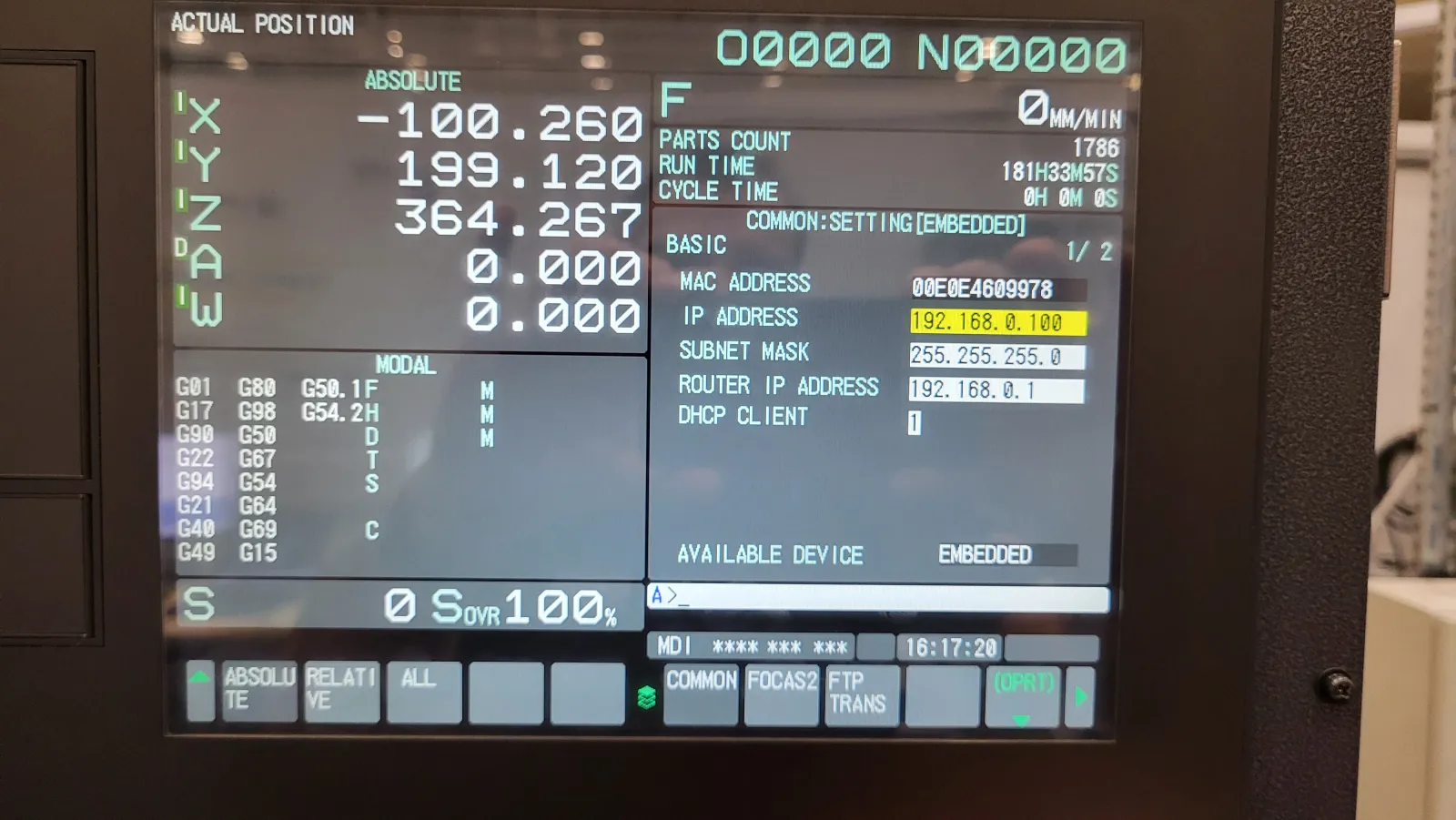
Use the page-forward soft key until you see COMMON+, and press it to open the COMMON:SETTING (EMBEDDED) screen.
-
Set the following fields:
Field Value IP ADDRESS 169.254.254.1SUBNET MASK 255.255.0.0ROUTER IP ADDRESS 169.254.254.1DHCP CLIENT 0(disabled — this is a static address)
- Press the FOCAS2 soft key (next to COMMON+) and confirm the Ethernet port is set to 8193 — this is Fanuc's default FOCAS2 port, so it's usually already correct.
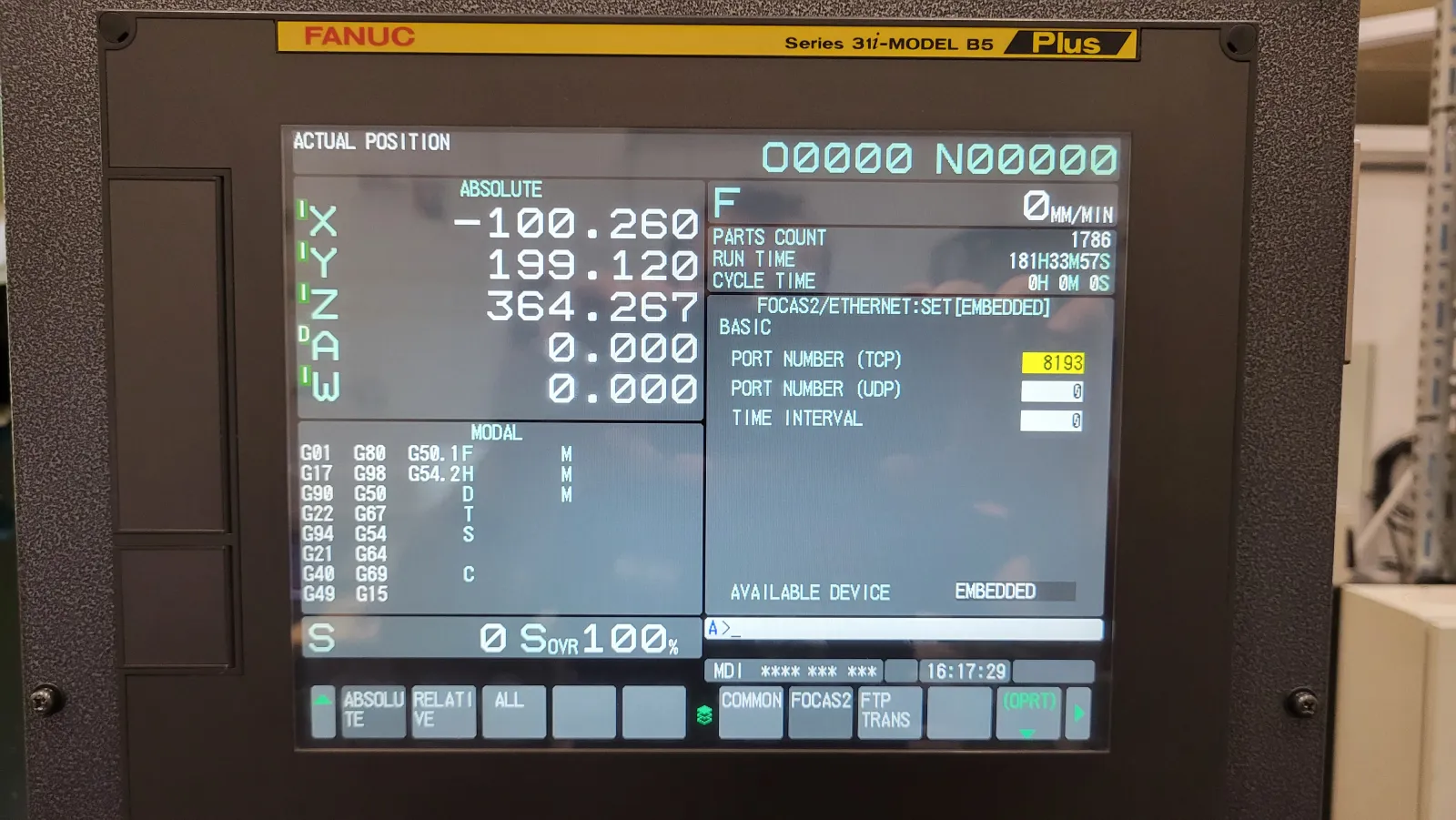
Exact menu names and key positions can vary slightly between control generations (0i, 30i, 31i, 32i), but the fields themselves are the same.
Step 2: Configure the machine in TrackMyMachines
- Go to Manage → Machines and open the machine (or create it first — see Adding a machine).
- Under Advanced Settings, open Machine connection options.
- Set:
- Direct machine connection type:
Fanuc - Machine URL:
169.254.254.1 - Machine Port:
8193
- Direct machine connection type:
- Leave Static IP, Subnet Mask and Default Gateway blank — those describe your TMM Connect device's own network interface, not the Fanuc control's, and aren't needed for this setup.
- Click Update Machine.
Once saved, the change is pushed out to your TMM Connect device automatically — no need to restart anything on the machine or the device.
Need help?
If cycle data doesn't start appearing after a few minutes, double check the IP address and port match on both the control and in TrackMyMachines, and that nothing between the control and the TMM Connect device (a managed switch, firewall, etc.) is blocking the connection. Still stuck? Email support@trackmymachines.com.